
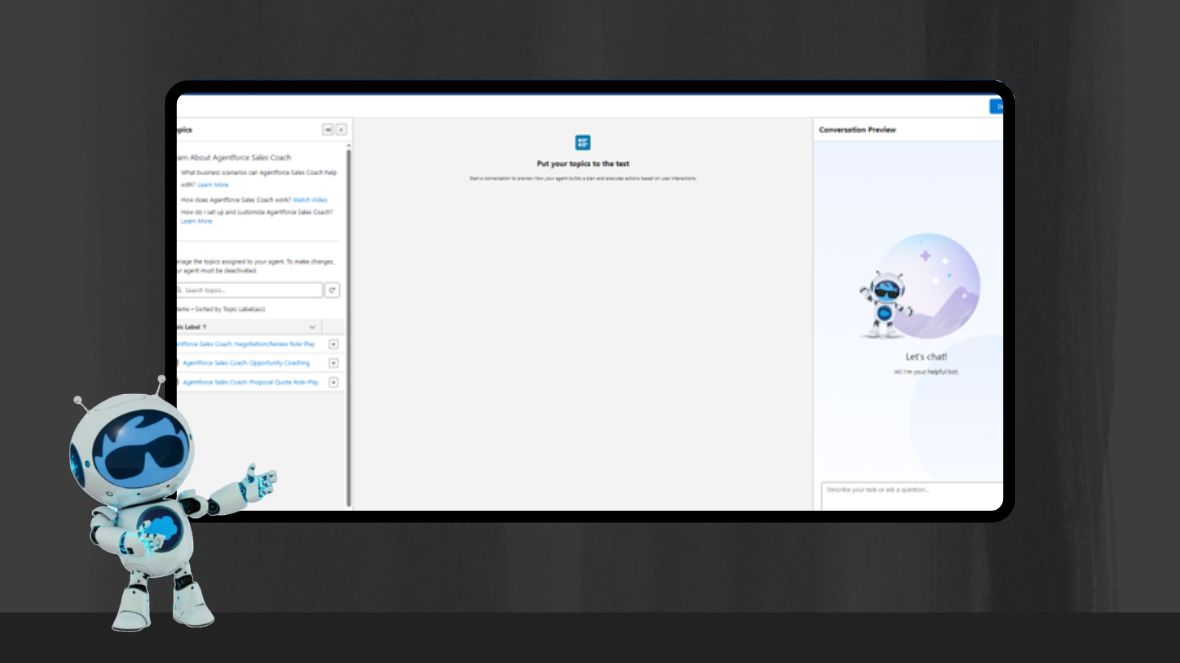
In today’s dynamic sales environment, achieving success requires more than just talent —it’s about consistency, process, and timely guidance. That’s where Agentforce Sales Coach comes in.
Designed to bring real-time coaching directly into Salesforce, Agentforce Sales Coach helps sales reps stay on track, follow best practices, and win more deals—without ever leaving the CRM.
What is Agentforce Sales Coach?
Agentforce Sales Coach is a guided selling tool from Salesforce that delivers stage-specific coaching content right on Opportunity records in Sales Cloud. As a rep moves through the sales cycle, they get tips, checklists, and resources tailored to each stage—making it easier to follow the playbook and close more deals. It’s not just another bot—it’s a generative AI-powered agent that uses your CRM data and sales process, surfaced through CRM Analytics, to guide reps at every step.
Key Features:
- On-demand coaching tailored to live deals
- Pitch practice with personalized feedback
- AI-driven role-play simulations for objection handling
- Stage-specific feedback linked to real CRM data
- Scalable coaching, freeing up manager time
What’s Included in Agentforce Sales Coach?
Agentforce Sales Coach is made up of several components that work together to deliver intelligent, actionable coaching
1. Topics
Topics group coaching guidance by function. For example:
- Opportunity Coaching
- Negotiation Role-Play
- Proposal/Quote Role-Play
These ensure the coaching experience is relevant to the situation or deal stage.
2. Actions
Each topic contains specific AI-executable actions like:
- “Review proposal language”
- “Identify objection handling gaps”
- “Provide negotiation tips”
Admins can customize these using natural language instructions.
3. Instructions
Each action has a detailed instruction set to tell the agent:
- What to do
- When to do it
- What questions to ask
4. Prompts & Prompt Templates
Prompts use everyday language to guide AI responses, while prompt templates include dynamic fields like deal stage, product name, and sales rep details. This allows for tailored, reusable responses across different sales scenarios.
5. Prompt Builder
This feature enables admins create, manage, and refine prompts for the Sales Coach agent. Think of it as your control panel for building high-quality generative AI workflows.
How to Set Up Agentforce Sales Coach in Salesforce
Launch & Access Setup
Go to Setup → search Sales Coach → click Agentforce Sales Coach.
Step 1. Enable Agentforce Sales Coach
1. On the Setup Wizard page, click Enable All to activate all required features.

2. Once the features are enabled, click Go to Data Cloud.

On the Data Cloud Setup page, verify the Your Home Org Details section is visible. Once confirmed, close this tab and return to the Sales Coach Setup tab. Refresh the page, then toggle Activate Agentforce Sales Coach on. Click Got It when the popup appears to confirm activation.

Step 2. Create a Sales Coaching User
1. In Step 2, expand Create a User for Agentforce Sales Coach.
2. Click Go to User Setup to open the user creation page.

3. Fill in the fields

4. Click Save, then return to the Setup page.
Assign Permissions to the Sales Coach User
- Under Step 2, click Go to Permission Sets.
- In the new tab, click Add Assignments.
- Check the box for Sales Coach Agent, click Assign, then Done.

Step 3: Grant Access to Agentforce Sales Coach
- Expand Step 3: Grant Access to Agentforce Sales Coach.
- Click the first Go to Permission Sets to assign the Manage Agentforce Sales Coach permission.
- Click Add Assignments.
- Check your name, click Assign, then Done.
- Click Add Assignments.
- Now click the second Go to Permission Sets to assign the Use Agentforce Sales Coach permission.
- Again, click Add Assignments, check your name, click Assign, then Done

Add Agentforce Sales Coaching to Opportunity Pages
Return to Step 1 and click Go to App Builder. In the Lightning App Builder, open the Opportunity Record Page, then drag the Agentforce Sales Coach component above the Related Lists section. Click Save, then Activate. Choose Assign as Org Default, leave Desktop selected, and click Next followed by Save.

Step 4: Configure and Activate Your Sales Coaching Agent
- From the Setup page, expand Step 4: Configure and Activate Agentforce Sales Coach and click Go to Agent Builder.

- In the new tab, select Agentforce Sales Coach and click Next.
- Ensure all topics are added in Review Topics, then click Next.
- In the Define Settings section, populate the fields.

Click Next, leave language/tone and data section default, and click Create.
Personalize the Sales Coaching Agent
- In Agentforce Builder, click Agentforce Sales Coach: Negotiation/Review Role-Play under Topics.

- At the bottom, click New Version, then expand Topic Configuration.
- Replace the content in Classification Description, Scope, and Instruction fields with the new specified text.
- Click Save.
Add New Action from Asset Library
- Go to This Topic’s Actions tab > New > Add from Asset Library.
- Search for and select Give Feedback on Negotiation/Review Stage.
- Open the action in a new tab via the Open in new window icon.
- In the Prompt Template, click Test Inputs, fill the Transcript with provided content and select an Object Type.
- Click Preview, then click Save As > Save as a New Version.

Activate the Sales Coach Agent
- Click the back arrow to return to Setup.
- In Quick Find, type Agents, and click Agentforce Agents.
- Click Sales Coach Agent, then Open in Builder.
- Click Activate, then return using the back arrow.

Your Agentforce Sales Coach is now fully configured, personalized, and activated—ready to provide contextual, personalized coaching to your sales reps!
Conclusion
Agentforce Sales Coach empowers teams to sell smarter, not harder. It brings the best of your sales process, coaching culture, and resources directly into every deal—ensuring reps know exactly what to do, when to do it, and how to win.
If you’re serious about scaling your sales process and building a high-performing team, this is the coach you can’t afford to ignore.