

Screen Flows in Salesforce are useful for guiding users through multi-step processes like customer onboarding, service requests, or data entry. But as flows get longer or more detailed, users might lose track of their progress. To help with this, progress indicators can be added to show users where they are in the process and what steps are left. This makes the flow easier to follow and improves the overall experience.
This blog will show how to use progress indicators in Screen Flows to make things clearer and more user-friendly.
Enhance Your Flow UX with Progress Indicators
In the Flow screen, click the Settings icon at the top left of the Flow Builder page,
then click Show Advanced
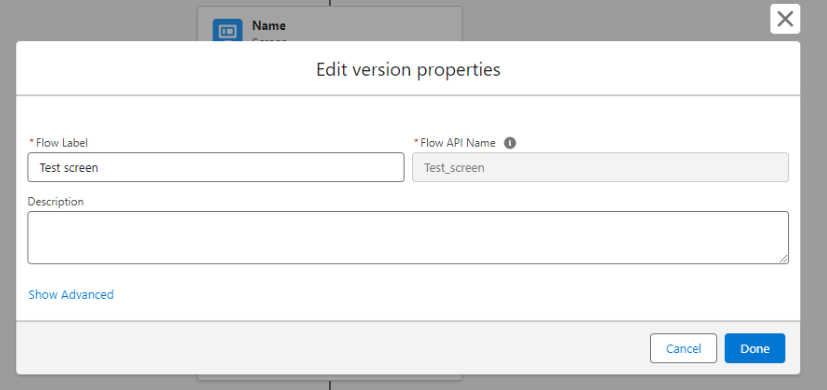
Scroll down to the Progress Indicator section under Screen Elements. You’ll find three types available:
- Simple – Top of Screen
- Path – Top of Screen
- Simple – Footer of Screen
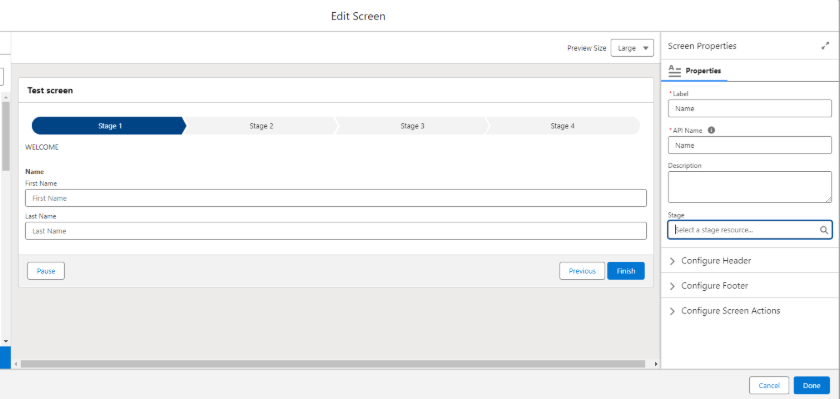
In the example below, I have selected: Path – Top of Screen.
How to Add Stages to Each Screen in a Flow
To show the correct stage name on each screen:
- In the Flow Builder, when editing a screen element, locate the Stage field on the right panel.
- Click the magnifying glass icon and choose + New Resource to open the New Stage Resource window (as shown above).
Fill out the New Stage Resource:
- Label: This is the name displayed in the progress bar (e.g., User Details screen).
- API Name: Auto-populated based on the label but can be edited if needed.
- Order: Determines the sequence in which stages appear. Lower numbers come first.
- Active by default: Check this if you want the flow to begin with this stage active.
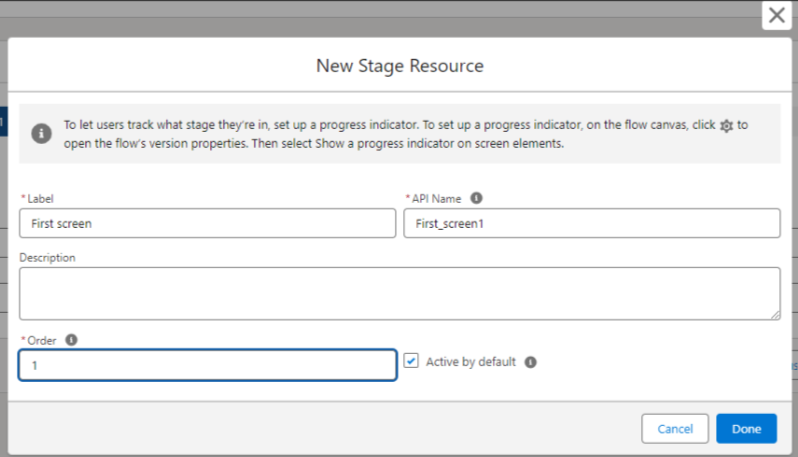
Click Done and repeat this for each screen. This defines the steps shown in the progress bar.
Example Output screen:

Why Visualizing Progress Matters
Imagine filling out a multi-page form without knowing how many steps remain. Frustrating, right?
Adding a progress indicator offers real value:
- Helps users stay oriented and informed
- Reduces from abandonment
- Gives users a sense of control
- Improves visual consistency and professionalism
Best Practices
- Use clear, descriptive screen labels—these appear in the progress bar.
- Keep the number of stages manageable—ideally under 6.
- Use conditional visibility to hide non-relevant steps.
- Always test the flow in Lightning Experience—progress indicators are not supported in Classic.
Conclusion
Using progress indicators in Salesforce Screen Flows makes it easier for users to follow multi-step processes. Whether you choose the simple or path style, showing progress keeps users informed, reduces confusion, and helps ensure flows are completed successfully.