


In CRM Analytics (formerly Tableau CRM), hardcoding year ranges into data preparation recipes can become brittle over time especially when working with historical or forecasted data that shifts every year. A common challenge is maintaining dynamic filters that always reflect the current business context without needing manual updates.
This post walks through how to dynamically filter data using a rolling year window based on the current year, using formula logic in CRM Analytics Recipes
Use Case
Let’s say you’re working with Salesforce Opportunity data, and you want to filter the CloseDate field to only include records from the past few years, but you don’t want to manually update your filters each year.
Goal
- In 2025, you want to include CloseDate values from 2021 to 2024.
- In 2026, it should automatically update to 2022 to 2025.
- In 2027, it should include 2023 to 2026.
And so on. This is often needed for trend reporting, pipeline analysis, or preparing historical data for machine learning models.
Challenges with Hardcoded Date Filters
Before we dive into the solution, let’s take a look at why hardcoding dates is problematic in CRM Analytics Recipes:
- Manual Maintenance
You’ll need to manually update your recipe or dashboard filters each year. This can become tedious and error-prone, especially when managing multiple assets. - Risk of Data Inaccuracy
Outdated hardcoded filters may exclude relevant data or include stale data, resulting in misleading reports.
- Not Scalable
When you work with large teams or complex data pipelines, hardcoded logic leads to versioning issues and more frequent recipe updates across environments.
Step-by-Step: The Dynamic Formula
In your CRM Analytics Recipe, navigate to your filter or Transform step and add this formula:
year(CloseDate) >= (year(now()) – 4) and year(CloseDate) <= (year(now()) – 1)
What it does:
- year(now()): Gets the current year
- -4: Sets the lower bound (4 years ago)
- -1: Sets the upper bound (previous full year)
So in 2025, this will resolve to:
year(CloseDate) >= 2021 and year(CloseDate) <= 2024
Current Year | Start Year | End Year | Included CloseDate Years |
| 2025 | 2021 | 2024 | 2021–2024 |
| 2026 | 2022 | 2025 | 2022–2025 |
| 2027 | 2023 | 2026 | 2023–2026 |
This logic ensures your dataset always includes the last 4 complete years, adjusting automatically based on the current year
Benefits
- No maintenance required year-to-year
- Fully dynamic logic for filtering historical windows
- Works with any date field (not just CloseDate)
- Can be extended for forecast/future ranges, too
Recipe Details: Step-by-Step Setup
Here’s how you can set this up in your CRM Analytics Data Prep Recipe
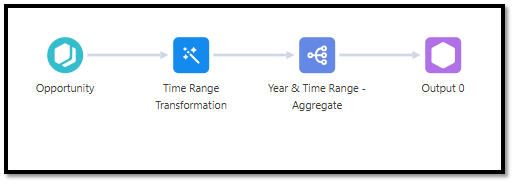
Step 1: Open Your Recipe
- Go to Analytics Studio → Recipes
- Open your existing recipe or create a new one that includes Opportunity or any object with a date field
Step 2: Add a Transform Node
- Click “+ Add Transform” → Choose Formula
- Name your column something like Is_In_Rolling_Year
Step 3: Use the Formula
Paste the following formula:
year(CloseDate) >= (year(now()) – 4) and year(CloseDate) <= (year(now()) – 1)
This will return a Boolean field (true/false) for filtering.
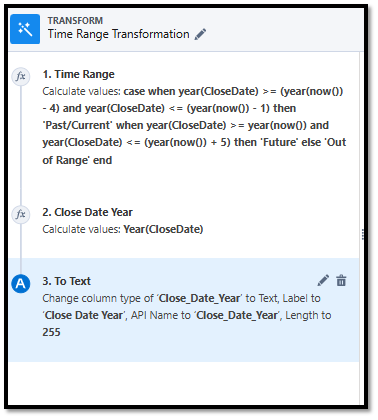
Step 4: Add a Filter Node
- Click “+ Add Transform” → Choose Filter
- Set the filter to only include rows where Is_In_Rolling_Year = true
Step 5: Output & Run
- Connect this to your Output node
- Save and Run the recipe on schedule or manually
Summary
CRM Analytics Recipes become far more robust when you replace hardcoded logic with dynamic date filtering. By using formulas like year(now()) – x, you can simplify maintenance, reduce errors, and keep your datasets aligned with the current business context—whether you’re building trend reports, forecasting models, or executive dashboards