
What is SOQL in Salesforce?
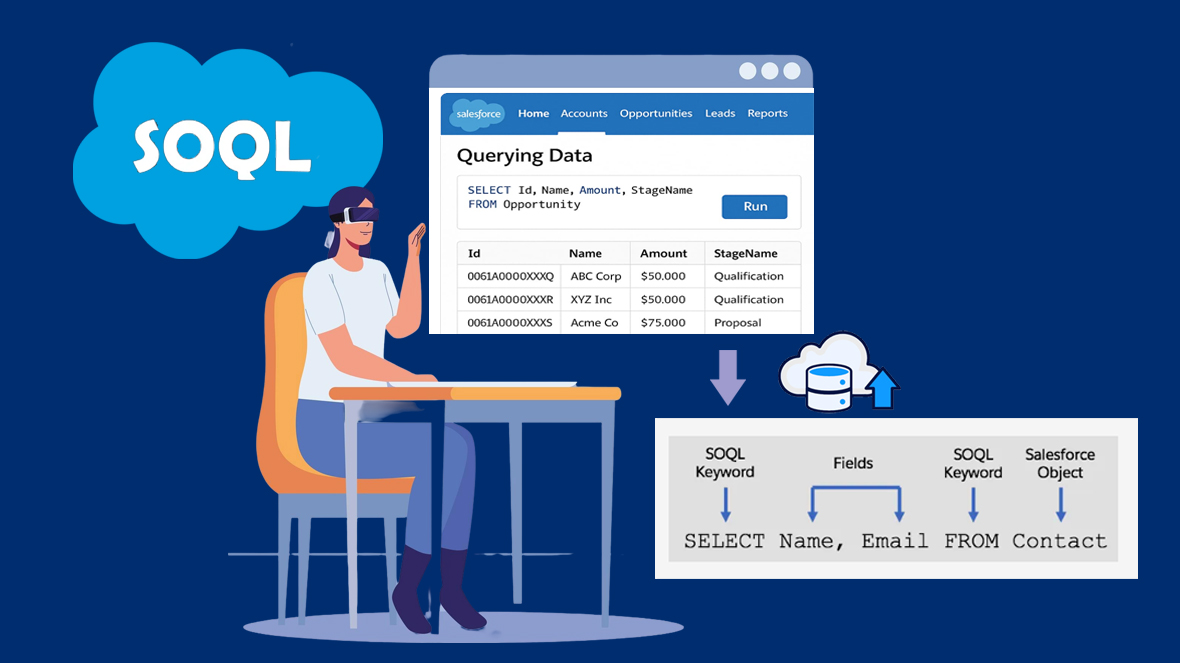
SOQL, short for Salesforce Object Query Language, is a tool used to retrieve data from Salesforce databases. It allows you to search Salesforce records for specific information, just like how SQL is used in traditional databases.
When to Use SOQL :
- Retrieve data from a specific object or related objects.
- Count records matching certain criteria.
- Sort results using ORDER BY.
- Use aggregate functions
How to Create a SOQL Query :
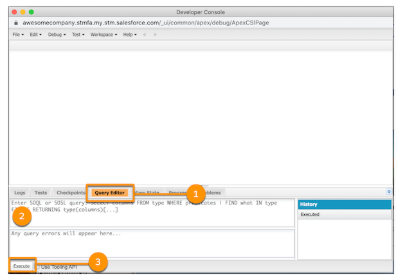
- Click the gear icon. Using Classic. Click your name in the upper right corner.
- Click Developer Console.
When launched, the Developer Console opens in a separate window - To open the Query Editor panel, click Query Editor (1).
In the Query Editor panel (2), enter this query. - Click Execute (3).
Your results display in the Query Results grid in the Developer Console workspace.
Example Query :
SELECT toLabel(LocaleSidKey) LocaleName, LocaleSidKey, Count(id) UserCount
FROM User
where IsActive=true
GROUP BY LocaleSidKey
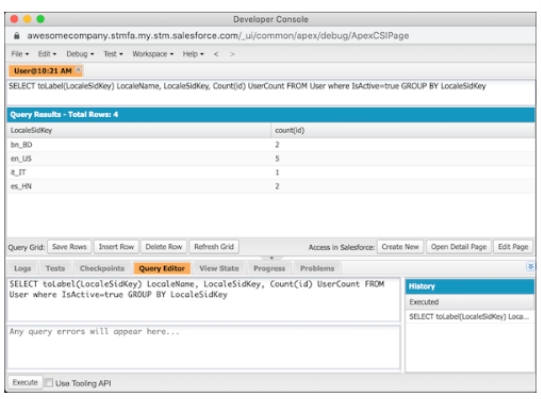
In this example, there are 4 locales in use across 10 users: 2 users with bn_BD, 5 users with en_US, 1 user with it_IT, and 2 users with en_HN.
Understanding the Structure of a SOQL Query
Creating a SOQL query is very similar to building a Salesforce report and is a core foundation for working with CRM Analytics. When you build a report, you typically ask:
- What fields do I want to display?
- Where are those fields located (which object)?
You ask the same questions when writing a SOQL query!
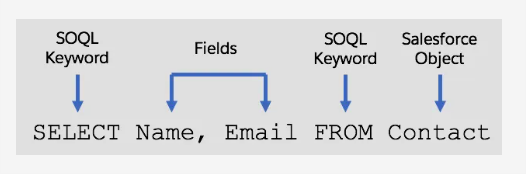
The query uses standard SOQL keywords like SELECT and FROM, along with fields such as Name and Email from the Contact object
HOW TO WRITE SOQL :
Required
SOQL Clauses :
The Foundation of a SOQL Query: SELECT and FROM
At the core of every SOQL query are two essential clauses:
- SELECT clause
- FROM clause
1. The SELECT Clause
This clause tells Salesforce what fields you want to retrieve.
For example:

2. The FROM Clause
This clause tells Salesforce where to look — in other words, which object the data is coming from.

Filtering Data with the WHERE Clause :
The WHERE clause lets you specify conditions so you get only the records that match your criteria.
Example :
SELECT Id, Name FROM Account WHERE Industry = ‘Technology’
Using Logical Operators in SOQL :
SOQL supports the following logical operators:
- AND – all conditions must be true
- OR – at least one condition must be true
- NOT – reverses a condition.
These operators help you build complex filters in your queries.
AND Operator
Use AND when all conditions must be true for a record to be returned.
Example :
SELECT Name, CloseDate
FROM Opportunity
WHERE StageName = ‘Prospecting’ AND Amount > 10000
This query fetches opportunities where the stage is Prospecting and the amount is greater than 10,000
OR Operator
Use OR when any one of the conditions can be true.
Example :
SELECT Name
FROM Opportunity
WHERE StageName = ‘Negotiation’ OR StageName = ‘Proposal’
This returns opportunities in either the Negotiation stage or the Proposal stage.
NOT Operator
Use NOT to exclude records that meet a certain condition.
Example :
SELECT Name
FROM Opportunity
WHERE NOT (StageName = ‘Closed Won’)
This gets all opportunities except those that are already closed won.
Using Aliases in SOQL :
Aliases in SOQL are like short nicknames for objects. Instead of repeating a long object name over and over, you can assign it a shorter alias and use that in your query.
Example :
SELECT c.FirstName, c.LastName FROM Contact c
Contact is the object
c is the alias
Instead of writing Contact.FirstName, you simply write c.FirstName
Aggregate Functions in SOQL :
Aggregate functions in SOQL allow you to calculate summary values like totals, averages, and counts directly from your data
1. AVG()
Calculates the average of a numeric field from all records that meet the query criteria.
SELECT AVG(Amount) FROM Opportunity
This query returns the average Amount of all Opportunity records.
2. COUNT()
Counts the total number of records that satisfy the specified conditions
SELECT COUNT() FROM Account WHERE Name LIKE ‘a%’
This query counts the number of Account records where the Name starts with “a”.
3. COUNT(fieldName)
Counts the number of records where the specified field is not null and meets the filter conditions.
SELECT COUNT(FirstName) FROM Account WHERE Name LIKE ‘a%’
This returns the count of Account records where Name starts with “a” and FirstName is not null.
4. COUNT_DISTINCT(fieldName)
Returns the total of unique values (excluding nulls) in the selected field
SELECT COUNT_DISTINCT(LastName) FROM Opportunity
This query counts how many unique LastName values exist in Opportunity records.
5. MIN()
Returns the minimum value of a field across all records.
SELECT MIN(CreatedDate) FROM Account
Returns the earliest CreatedDate among Account record
6. MAX()
Returns the maximum value of a field.
SELECT MAX(LastModifiedDate) FROM Contact
Returns the most recent LastModifiedDate from Contact records.
Note: When using MIN() or MAX() on picklist fields, the functions use the picklist’s sort order rather than alphabetical order.
7. SUM()
Returns the sum of a specific numeric field for each record that matches the query
SELECT SUM(Amount) FROM Opportunity
Returns the total Amount for all Opportunity records.
Using LIMIT to Restrict Query Results :
The LIMIT clause lets you control how many records your SOQL query returns. It’s optional but very useful.
SELECT Name, Email FROM Contact LIMIT 10
This query returns only the first 10 Contact records from your Salesforce Org.
LIKE OPERATOR :
The LIKE operator is used to search for patterns in text fields. It works similarly to = but allows wildcards to match partial strings.
The % and _ wildcards are supported for the LIKEoperator.
Wildcards Supported:
- % — matches zero or more characters
- _ — matches exactly one character
Using % — Matches anything starting with ‘Ram’
SELECT Id, Name FROM Account WHERE Name LIKE ‘Ram%’
- Matches: Ram, Ramkumar, Ramesh, Ramalingam
- Does not match: Aram, Kram, Abram
Using _ — Matches names with exactly one character after ‘Ram’
SELECT Id, Name FROM Account WHERE Name LIKE ‘Ram_’
- Matches: Rama, Rami, Ramy
- Does not match: Ram, Ramesh, Ramkumar
Using % and _ — Matches names with ‘Ram’ + at least one more character
SELECT Id, Name FROM Account WHERE Name LIKE ‘Ram_%’
- Matches: Rama, Ramesh, Ramdas, Ramkumar
- Does not match: Ram (no extra characters)
ORDER BY :
The ORDER BY keyword can be used to control the order of the query results
SELECT Name, Industry FROM Account ORDER BY CreatedDate
ASC or DESC specifies whether the results are ordered in ascending or descending. The default order is ascending.
GROUP BY:
The GROUP BY clause allows you to group records based on one or more fields and aggregate data for each group, techniques often refined over time through Salesforce managed services. Instead of processing individual records, you get summarized results by category.
SELECT LeadSource, COUNT(Id) FROM Lead GROUP BY LeadSource
- This query groups Leads by their LeadSource field.
- It returns each LeadSource value along with the count of Leads for that source.